Dashboard tour
Where everything lives in your BuzFind dashboard. About a 5 minute read.
After login, you land on the dashboard at /dashboard.
Every section is reachable from the left sidebar. Here is what each one does and how to use it.
The sidebar - your map
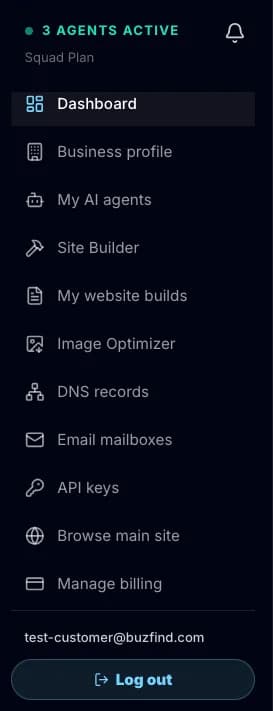
Here is each section, in the order it appears:
- Dashboard: the home screen, with your setup steps, recent agent tasks, and the chat.
- Business profile: your business name, phone, address, website, service area, and links to your Google Business Profile and social pages. Agents read this so their work fits your business.
- Get listed (Google + Facebook): a step-by-step helper for setting up your own Google Business Profile and Facebook page. We fill in the details for you to copy. You create and verify the accounts yourself.
- My AI agents: pick which of the 25 agents fill your plan's seats, swap them, or add an extra agent.
- Audit reports & fixes: your finished reports, with the steps to fix each problem.
- Social Automator: turns a page of your site into draft social posts and images you can edit and download (paid plans).
- Site Builder: where you order a new website.
- My website builds: every Site Builder order you have placed, with its status, preview, and live link.
- Image Optimizer: shrinks photos in your browser before you upload them.
- DNS records: the records to paste at your domain registrar so your site goes live and email works.
- Email mailboxes: create mailboxes, set forwarding, write an out-of-office message.
- API keys: for developers who want to connect BuzFind to their own tools.
- Help & support: open a support ticket and see our replies. Add a US phone number and we call you back, or a WhatsApp number if you are outside the US.
- Browse main site: opens buzfind.com in a new tab.
- Manage billing: opens your billing portal (plan, card, invoices, cancel).
The home screen
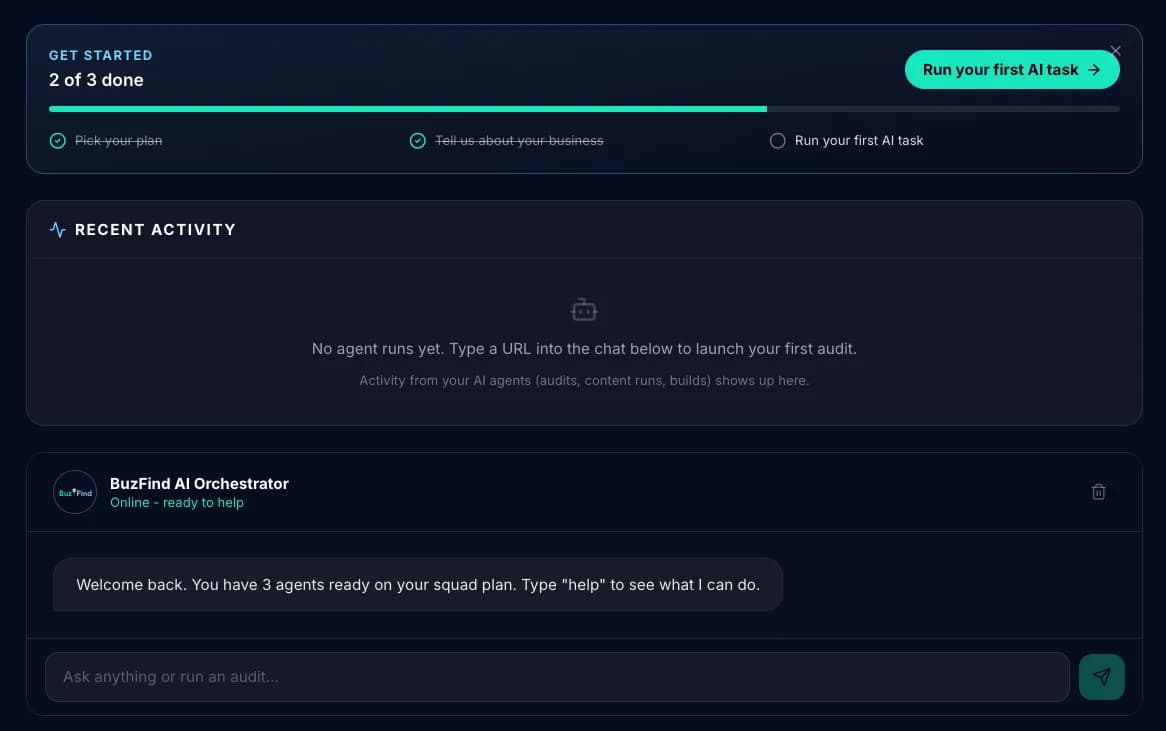
If you have not picked a plan yet, the home screen shows the four plan cards. Pick one and check out. Your agent seats unlock as soon as the payment goes through.
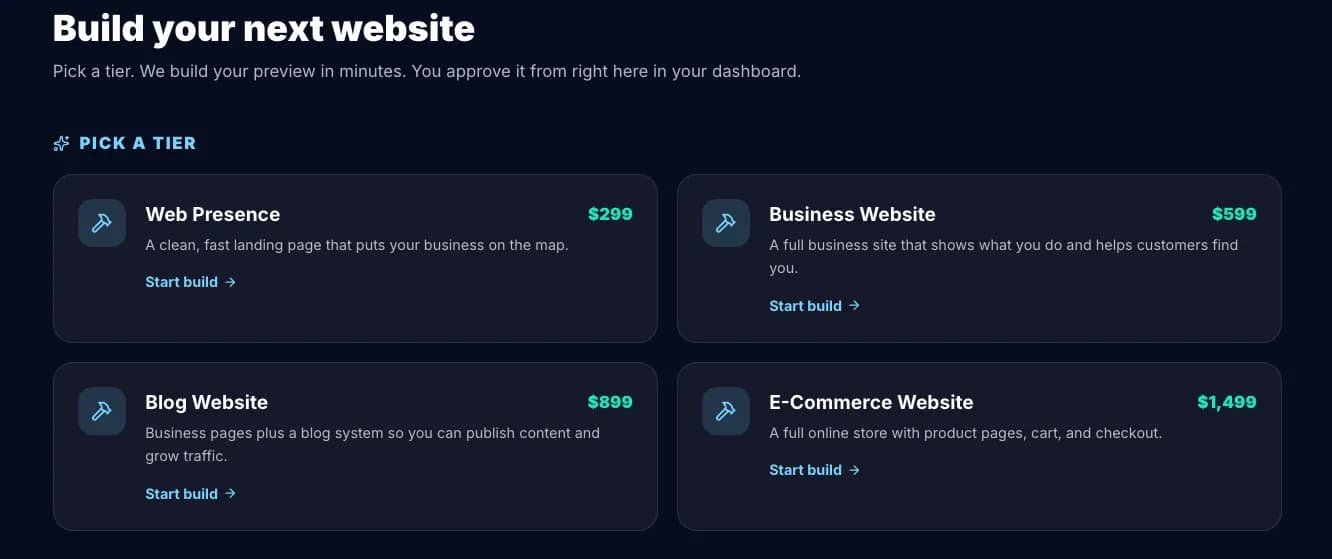
Once your plan is active, the home screen swaps in three things:
- Onboarding progress: a small meter with your 3 setup steps and which ones are still left.
- Recent activity: your last 10 agent tasks, with the website each one checked and whether it is done.
- Chat: type what you need in plain English. The chat sends it to the right agent and shows you the answer.
Business profile
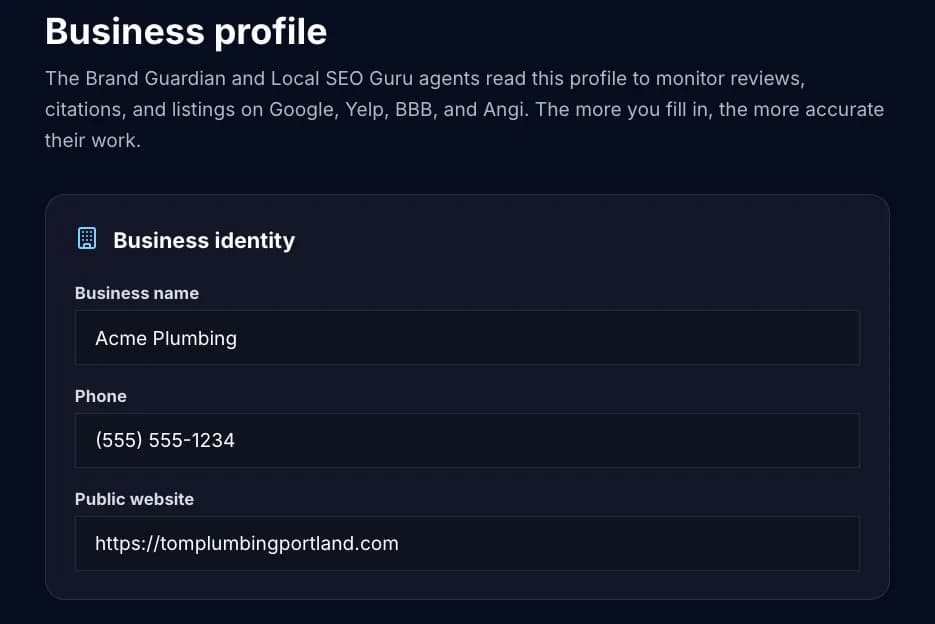
Click Business profile in the sidebar. Fill in the form once.
Your agents read this profile before they work. The Authority Content Creator uses it to write about your real services and town. The Entity Schema Engineer uses your real name, address, and phone in the structured data it suggests. The Local SEO Guru uses your service area to check your city pages. If you skip it, their work will be more generic.
My AI agents
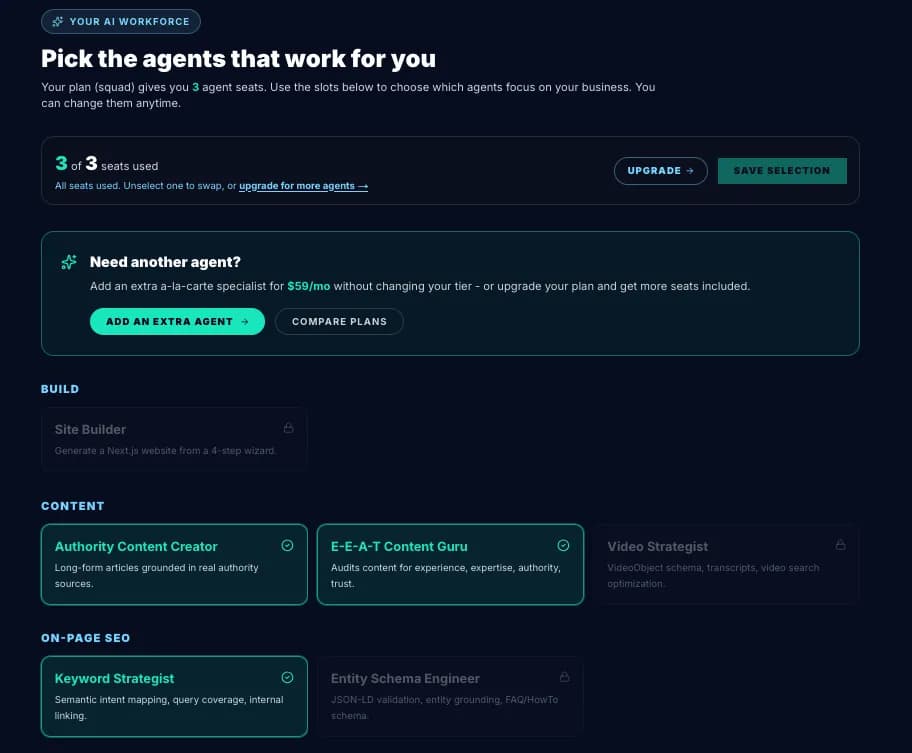
Click My AI agents in the sidebar. This is the seat picker.
Your plan gives you a set number of seats: Soloist 1, Squad 3, Department 5, Empire all 25. You choose which agents fill those seats. Need one more? Click Add an extra agent on that page. Each extra agent is $59 a month.
Not sure where to start? Pick the agents that match your biggest problem today. You can swap them later at no cost: unselect one and pick another.
Site Builder
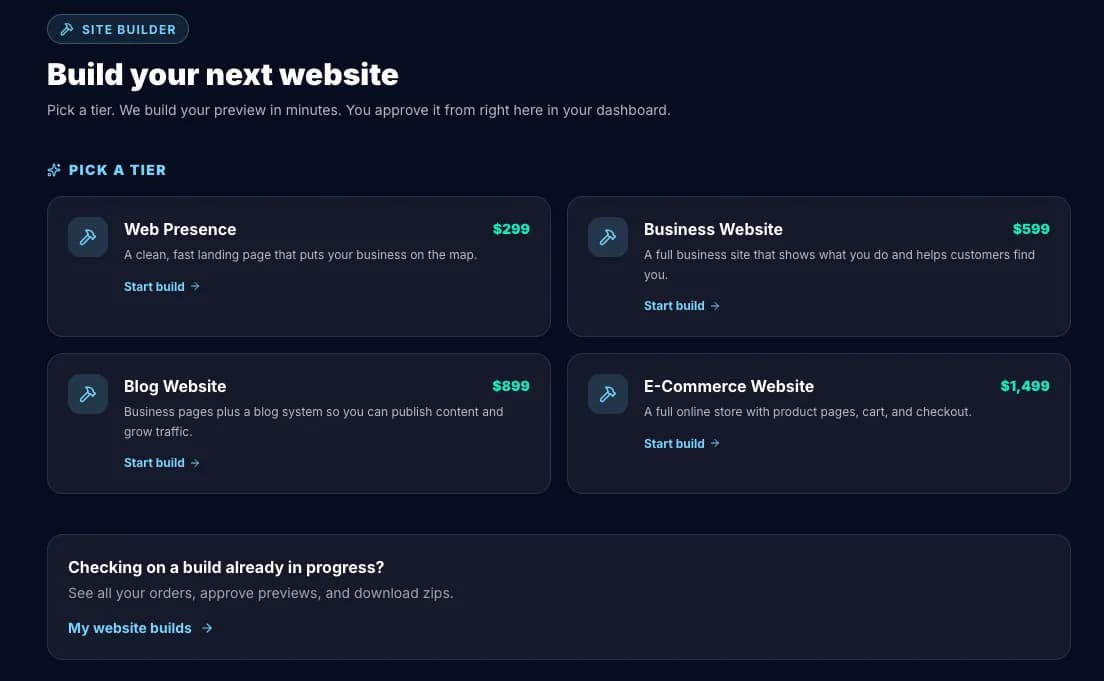
Click Site Builder and pick a website package. The wizard then walks you through 5 short steps: About you, Options, Starting style, The feel, and Finish. Then you pay at checkout.
After payment, we build a preview of your site. You check it, ask for changes if you want them, then approve. If we host it ($19 a month, first month paid at checkout), the site goes live at your own domain once you add a few DNS records. If you chose to host it yourself, you download a zip file of the site instead.
My website builds
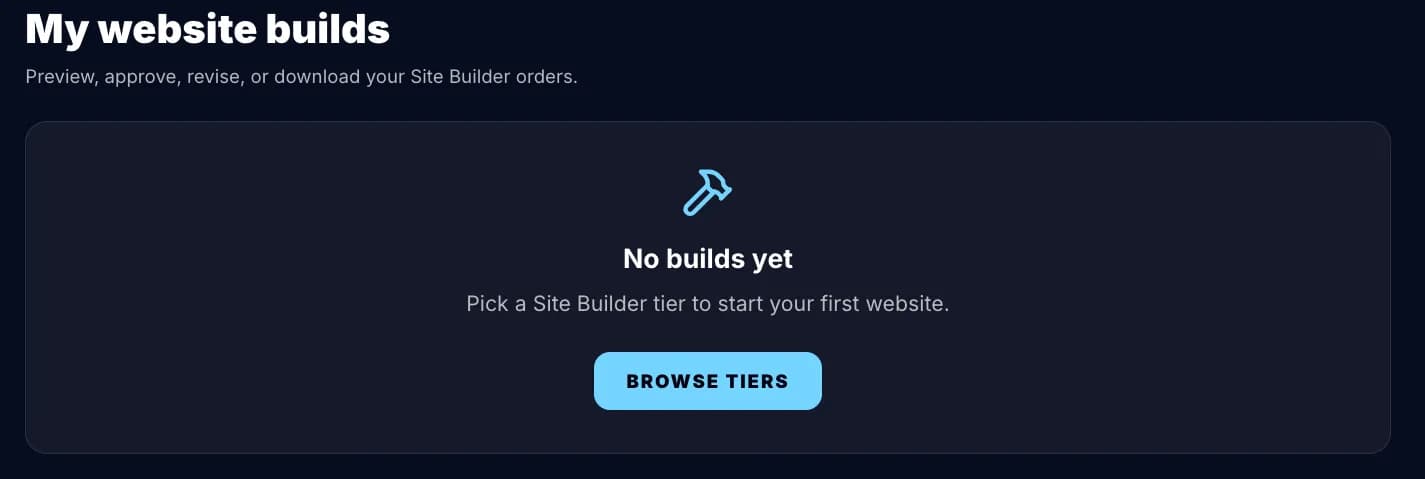
Click My website builds. Every Site Builder order shows here with status, the preview URL while it builds, and the live URL once approved. If we host the site, open the order and click Edit my site to change the words on your pages yourself.
Image Optimizer (included with every plan)
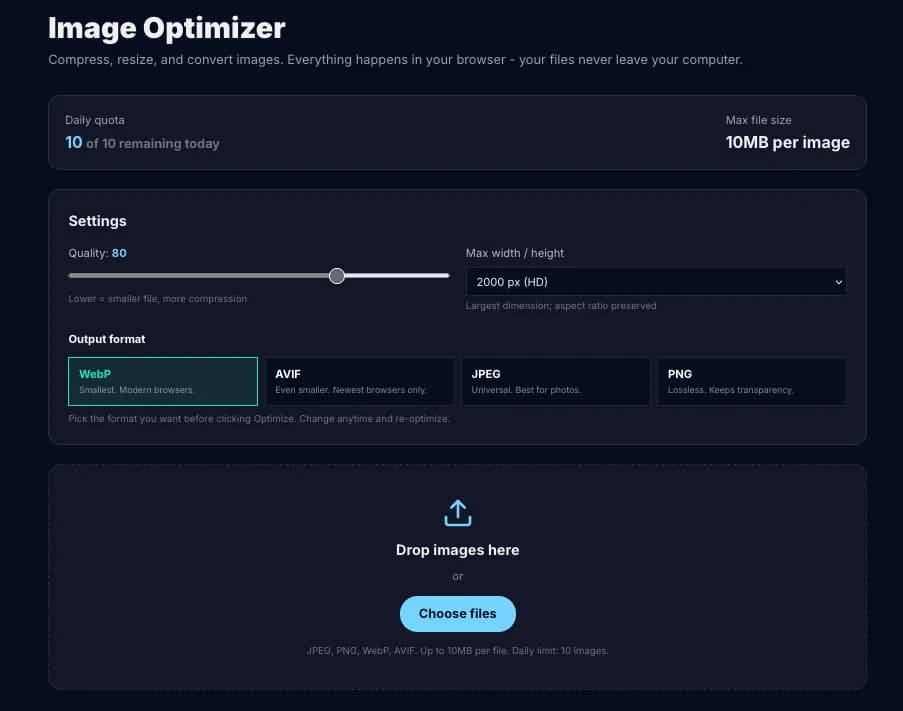
Click Image Optimizer. Pick WebP, AVIF, JPEG, or PNG, set a max width, drop the quality slider, and click Optimize.
- Drop or click to add images. Multiple at a time is fine.
- Daily quota: 10 images per day, up to 10 MB each.
- Re-optimize: change format or quality and click Re-optimize to make a new variant.
- Download: per file or as a zip when you have several.
Smaller images in the right format make your pages load faster, which helps your Core Web Vitals. The Site Builder wizard links here too, and the link opens in a new tab so you don't lose your progress.
See the public Image Optimizer page for the full details on formats and limits.
DNS records
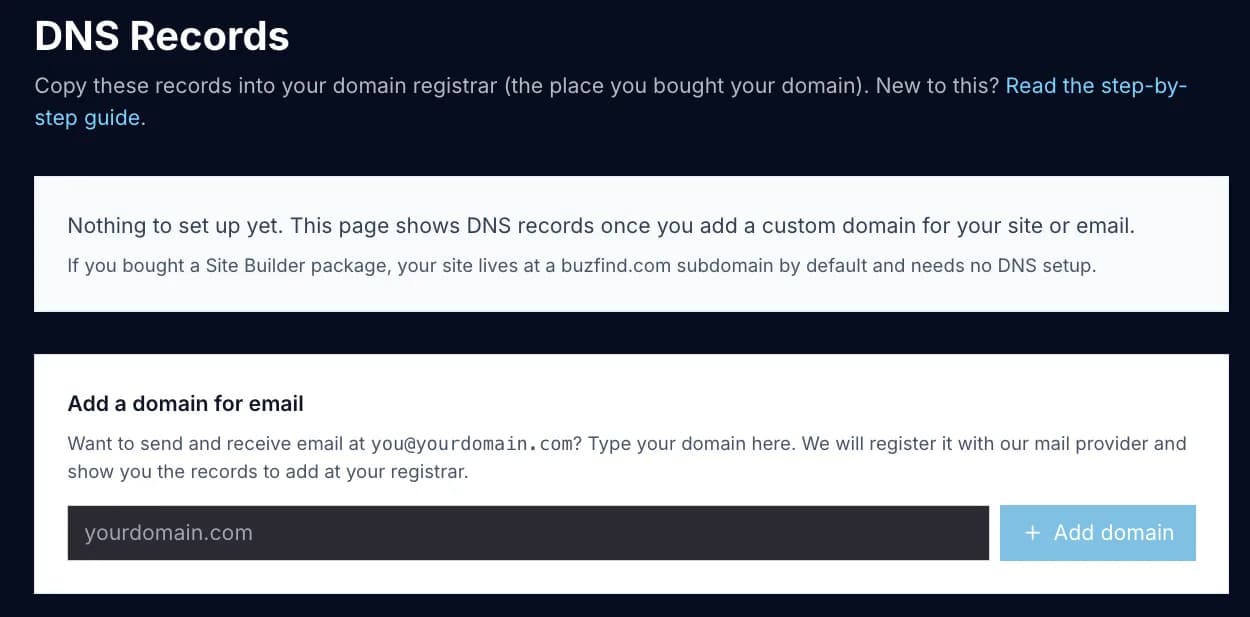
Click DNS records. If you brought your own domain (yourbusiness.com) or are setting up email, this page shows the exact records to copy into your registrar (the company you bought the domain from, like GoDaddy or Namecheap).
See the step-by-step DNS and email setup guide if you have never edited DNS before.
Email mailboxes
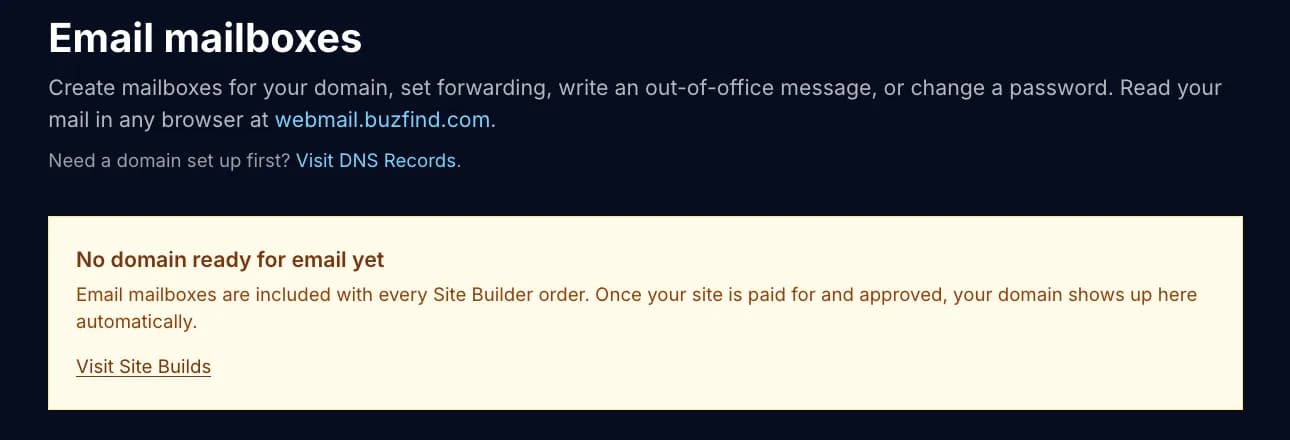
Click Email mailboxes. Every paid Site Builder order includes one mailbox at the domain you ordered.
For each mailbox you can click Manage to set forwarding, write an out-of-office message, or change the password. Read your mail in any browser at webmail.buzfind.com.
API keys
Click API keys. This is for developers who want to connect BuzFind to their own tools. Most customers can skip it.
The mint help button (bottom right)
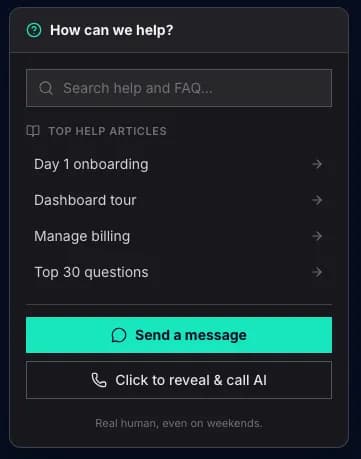
At the bottom-right of every dashboard page is a mint-colored question-mark button. Click it for:
- A search box that hits this entire help center
- Quick links to the most-read articles
- Our direct phone: call us
- A link to contact support
Where is billing?
Click Manage billing at the bottom of the left sidebar. It opens Stripe's billing portal, where you can change your plan, update your card, download invoices, or cancel.
Rather have us do it? Email and we will take care of it.
See manage billing for the full details.
Next steps
- Read the onboarding checklist if you have not set up your business profile yet
- Browse the agent catalog to learn what each specialist does
- See manage billing for plan change and cancel info